

3D Scene Settings
The 3D Scene widget in Screenberry allows you to create and manage three-dimensional environments. To access general 3D Scene settings, select 3D Scene in the Scene Inspector pane, and its parameters will be displayed in the corresponding panel below.
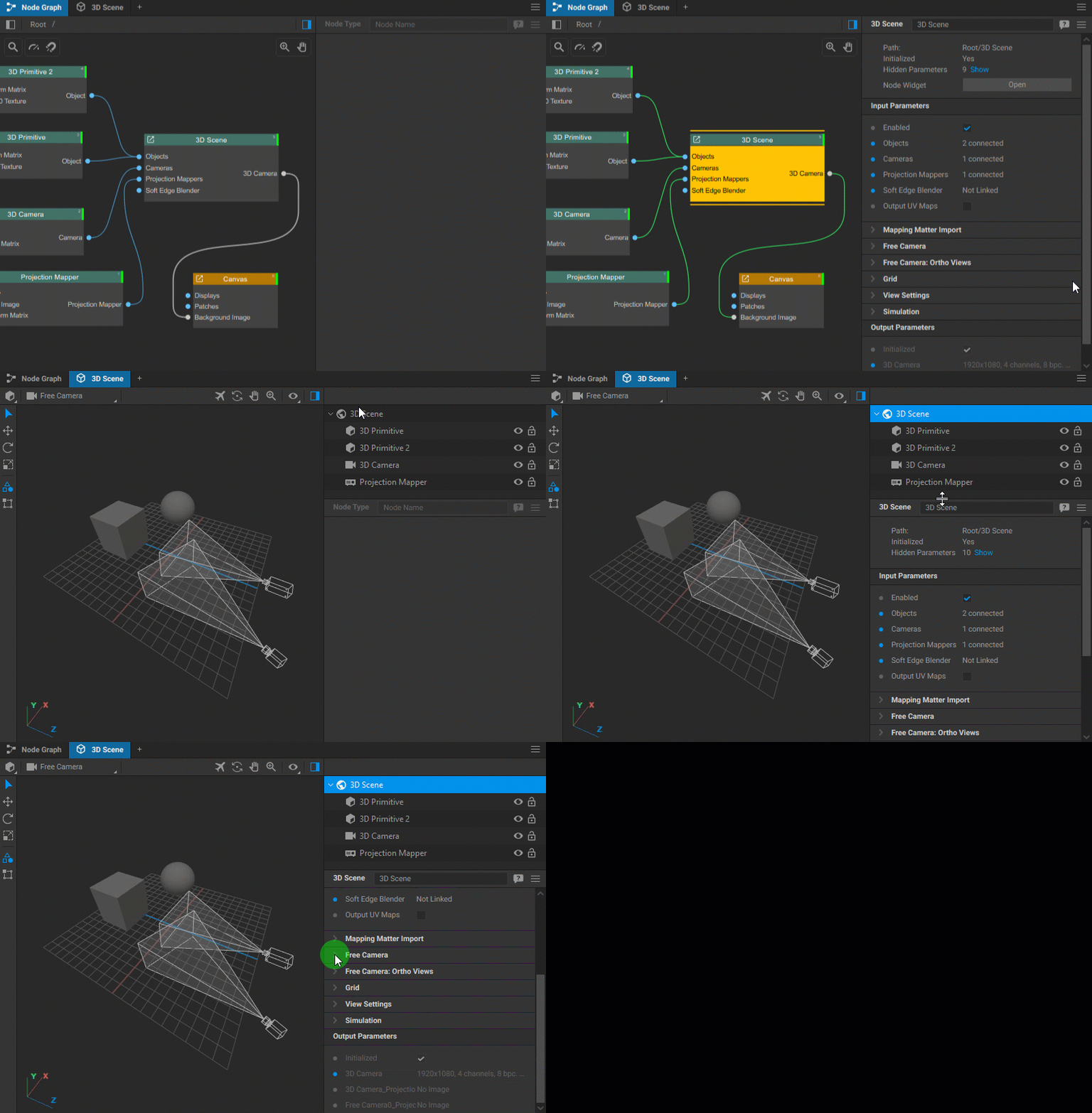
Note: The settings for each object integrated into the 3D scene are adjusted individually.
The 3D Scene settings include:
General settings
- Objects: Displays the number of connected 3D objects.
- Cameras: Shows the number of virtual cameras connected.
- Projection Mappers: Indicates how many projection mappers are connected.
- Soft Edge Blender: Status of the soft edge blending functionality.
- Output UV Maps: Toggles the UV map output on or off.
Mapping Matter Import
Mapping Matter Import Folder: Specify the directory containing mapping data.
Load Projectors as: Choose to load the projection data as either Cameras or Projection Mappers.
Free Camera settings
- View Mode: Offers various options for displaying objects in the camera view:
- Textured: Displays the scene with all textures applied to objects.
- Wireframe: Displays the geometry of objects as a mesh of lines, representing the edges of all polygons.
- Textured + Wireframe: Combines the textured and wireframe views, overlaying the wireframe mesh on top of the textured objects.
- Color: Renders objects in solid colors, which can be set in the settings of the individual objects.
- Color + Wireframe: Displays the objects in flat colors with the wireframe mesh overlaid.
- Points: Displays only the vertices (points) of the objects’ geometry.
- None (Projections Only): Displays only the projections from Projection Mappers mapped to objects.
- Show Projections: Toggles the visibility of projections in the viewport.
- Blending Mode: Controls how layers of textures or solid colors blend with each other.
- Field of View (FOV): Specifies the horizontal extent of the visible area in a 3D scene captured by a camera.
- Depth Test and Back-face Culling: These settings control the visibility of objects’ surfaces relative to the camera’s position.
- Near Distance: Defines the minimum distance at which the camera begins rendering objects.
- Keyboard Fly Speed and Keyboard Orbit and Zoom Speed: Sets the camera’s movement speeds for keyboard navigation.
- Antialiasing: Toggles the antialiasing option to smooth out the edges of objects viewed in the 3D scene.
Ortho Views settings
- Position and Width: Establishes the camera position and framing width for each of the orthographic views like top, bottom, left, right, front, and back.
Grid and Gizmo settings
- Camera Gizmo Size: Adjusts the camera gizmo size.
- Axes Gizmo Size: Sets the size of the gizmo that represents the axes in the scene.
- Grid Step and Number of Cells: Define the scale and complexity of the grid.
View Settings
- Camera Gizmo Size and Transform Gizmo Size: Set the sizes of the camera and transform gizmos.
- Wireframe Color and Width: Adjusts the appearance of the wireframe outlining object geometry.
- Point Size: Changes the size of the points representing vertices in certain visualization modes.
- Selection Line Width: Modifies the thickness of the lines used to highlight selected objects.
- Show Grid and Show Camera Gizmos: Toggle the visibility of the grid and camera gizmos in the viewport.
Projection settings
- Simulate Projection: Enables the real-time simulation of projection mapping to preview the mapping outcome.
By adjusting these settings, users can control the visualization of the 3D environment.
Last updated on