



Node Parameters and Settings
Node Parameters (Pins)
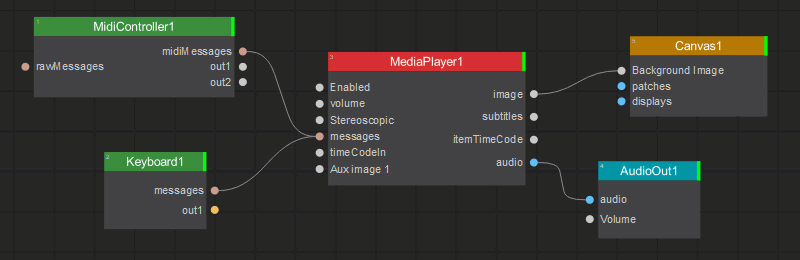
In Screenberry, every node has a set of parameters. These parameters are represented by pins on the nodes. The flow of data, actions, or messages between nodes is established by creating links between the pins of corresponding parameters.
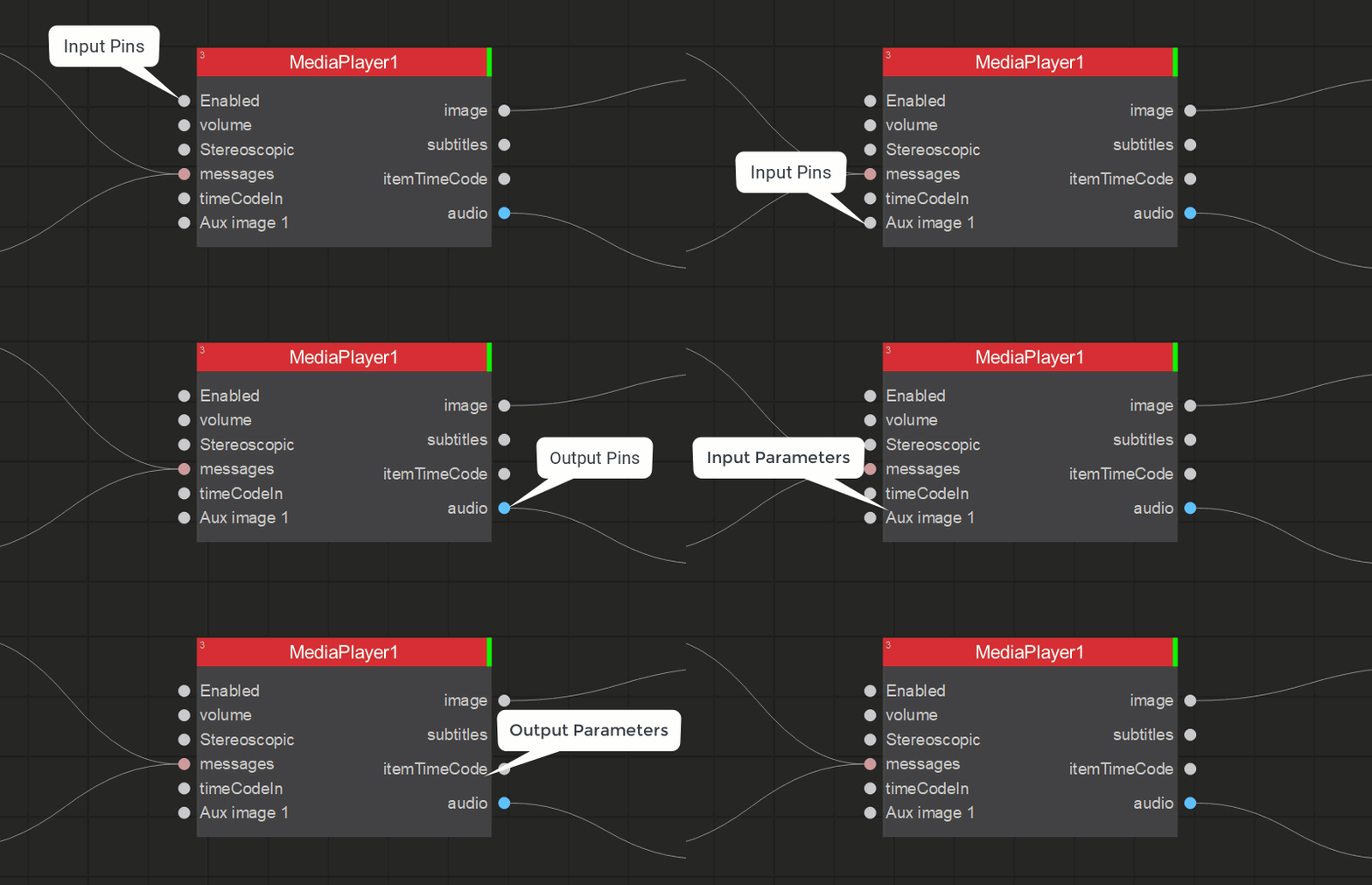
Data (gray pin  ) parameter contains simple data (number, string, timecode) or a pointer to Screenberry internal resources (i.e. image).
SmartLink (blue pin  ) establishes a transaction of a process between linked nodes.
Action (orange pin  ) supports the creation of multiple links to one input. The value of each resulting frame will be determined using logical OR for all input values.
Messages (pink pin  ) also enables the creation of multiple links to one input. All incoming messages will be queued on the input.
Node Settings
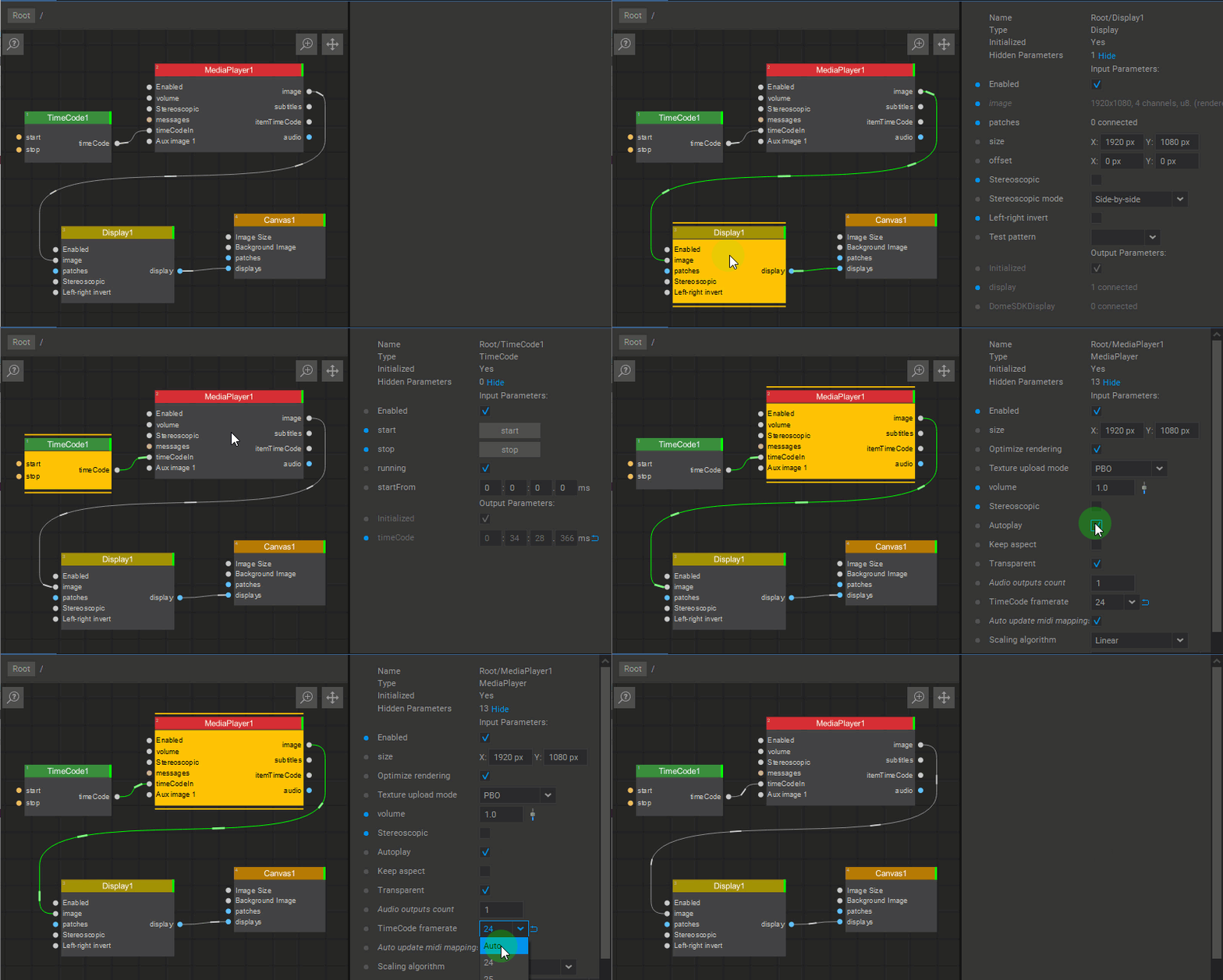
Selecting the node will open its Settings panel where node parameters can be edited.
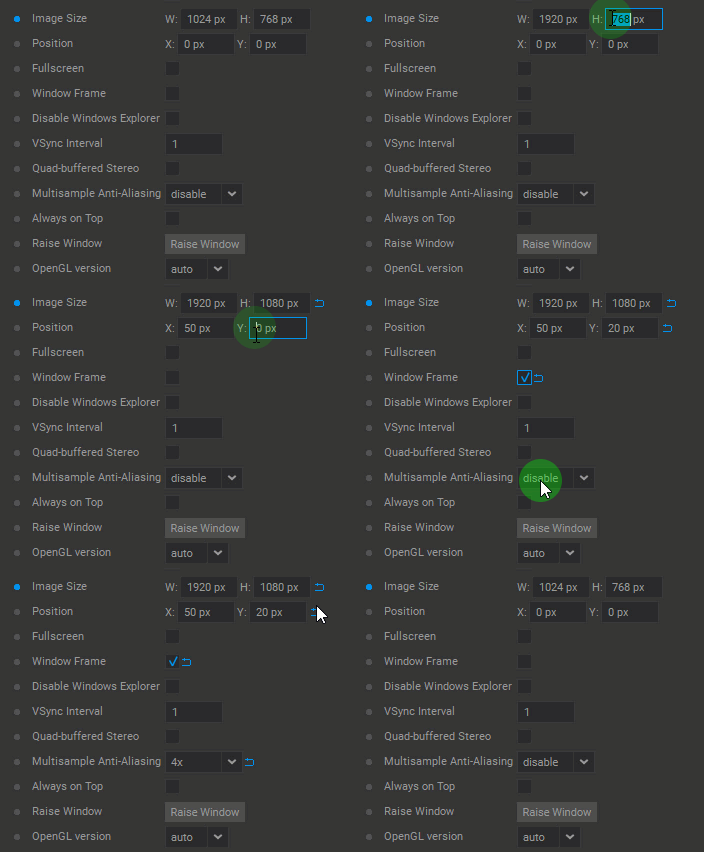
The change of the node parameter value in the Settings panel is indicated by the button  next to the parameter value field. Clicking on this button restores the default parameter value.
Settings of Multiple Selected Nodes
When more than one node is selected, only the parameters common to all selected nodes are displayed in the Settings panel and can be edited. Additionally, information regarding the number of nodes of each type within the selection will be displayed on the buttons at the top of the Settings panel. Click a button with a number to have only the nodes of that type remain in the current selection.
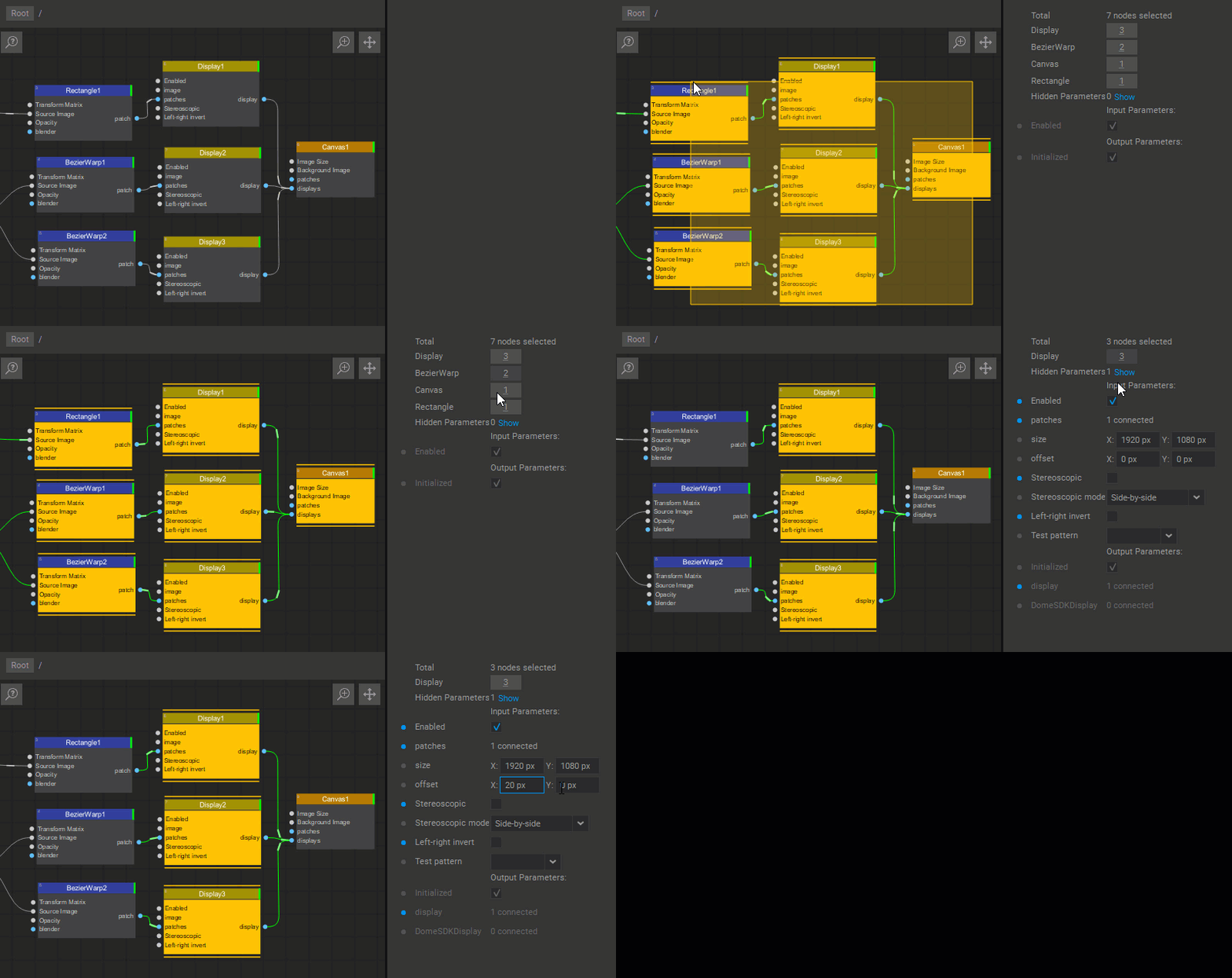
Hiding/Showing Individual Node Parameters
To hide a parameter, right-click on the parameter name and select Hide from the dropdown menu. To display hidden parameters, click Show in the Hidden parameters field. The parameters with a hidden status are displayed in italics. To unhide a parameter, right-click on the parameter name and select Show from the dropdown menu. To stop displaying hidden parameters, click Hide in the Hidden parameters field.
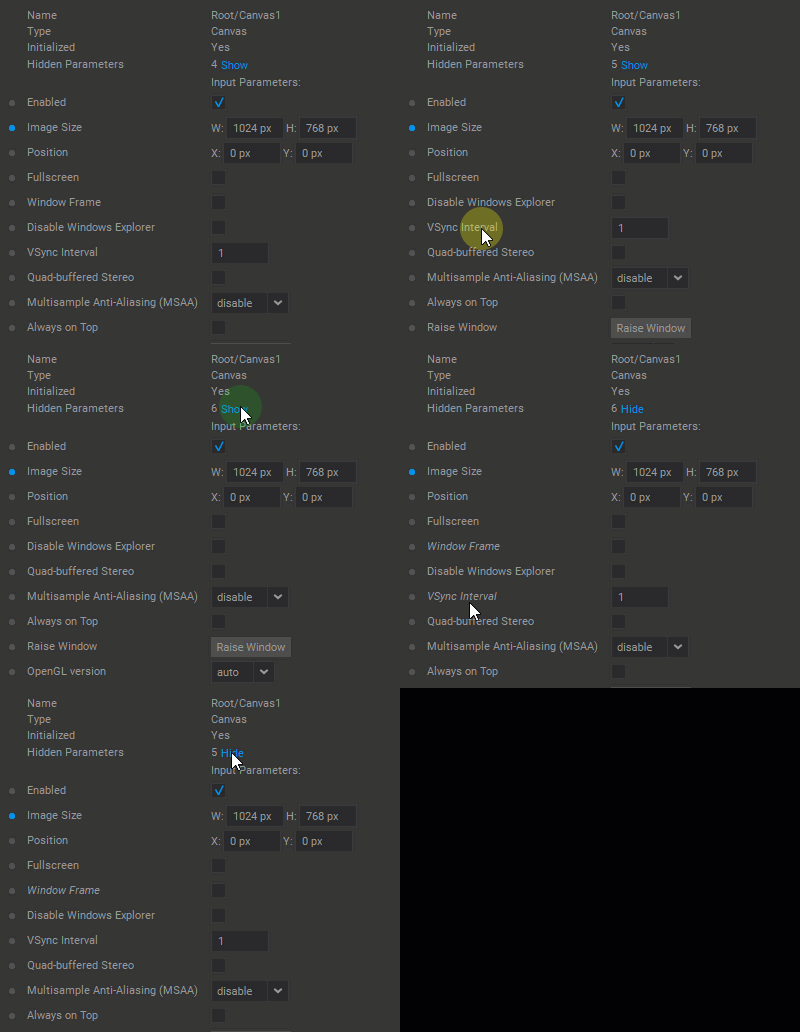
Note: Less frequently used and more advanced parameters for some nodes are hidden by default.
Hiding/Showing Node Pins
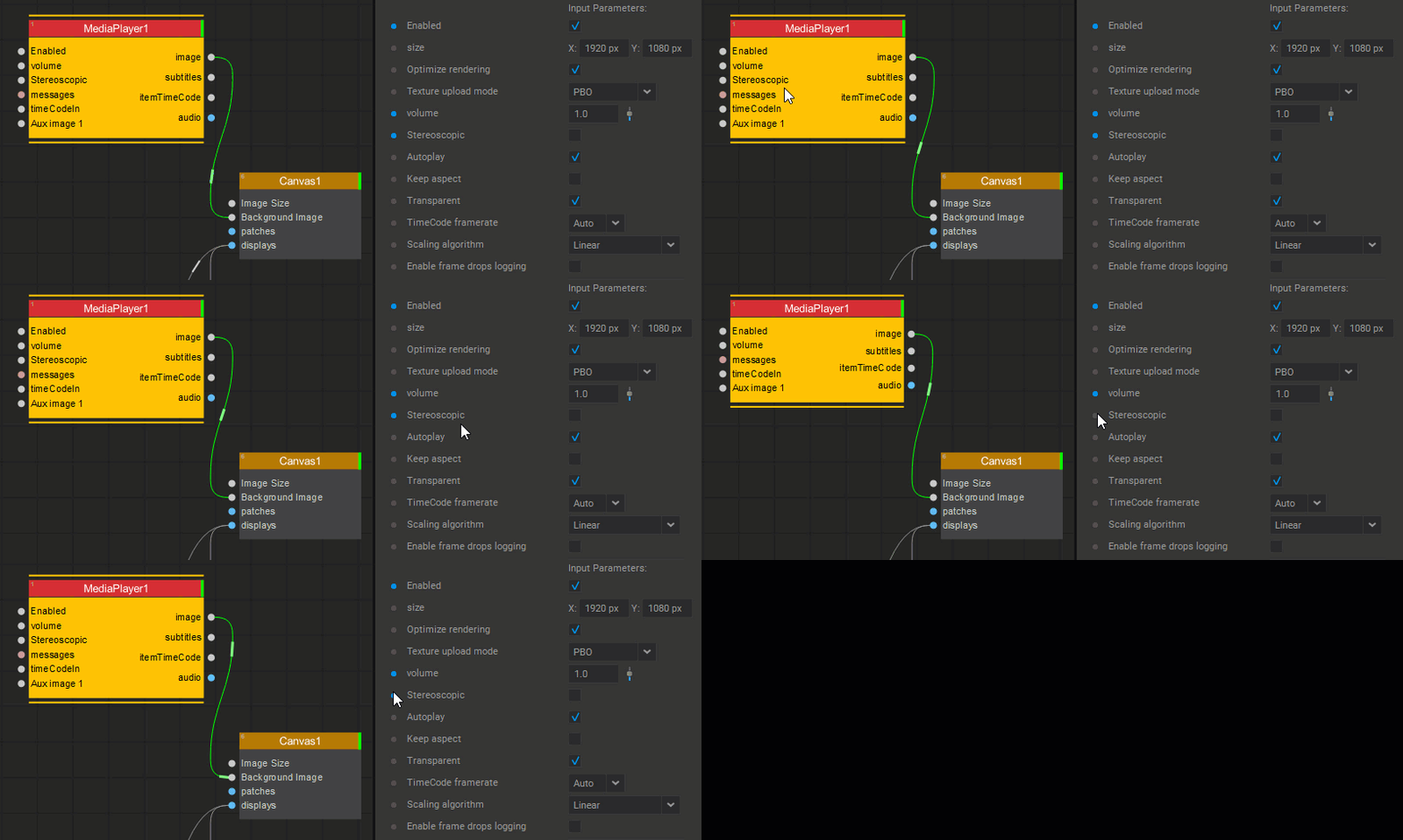
In the Settings panel, left-clicking on the dot to the left of the parameter name toggles between displaying and hiding the corresponding parameter pin on the node. A blue dot  indicates that the parameter pin is displayed, and a gray dot
  indicates that it is hidden.
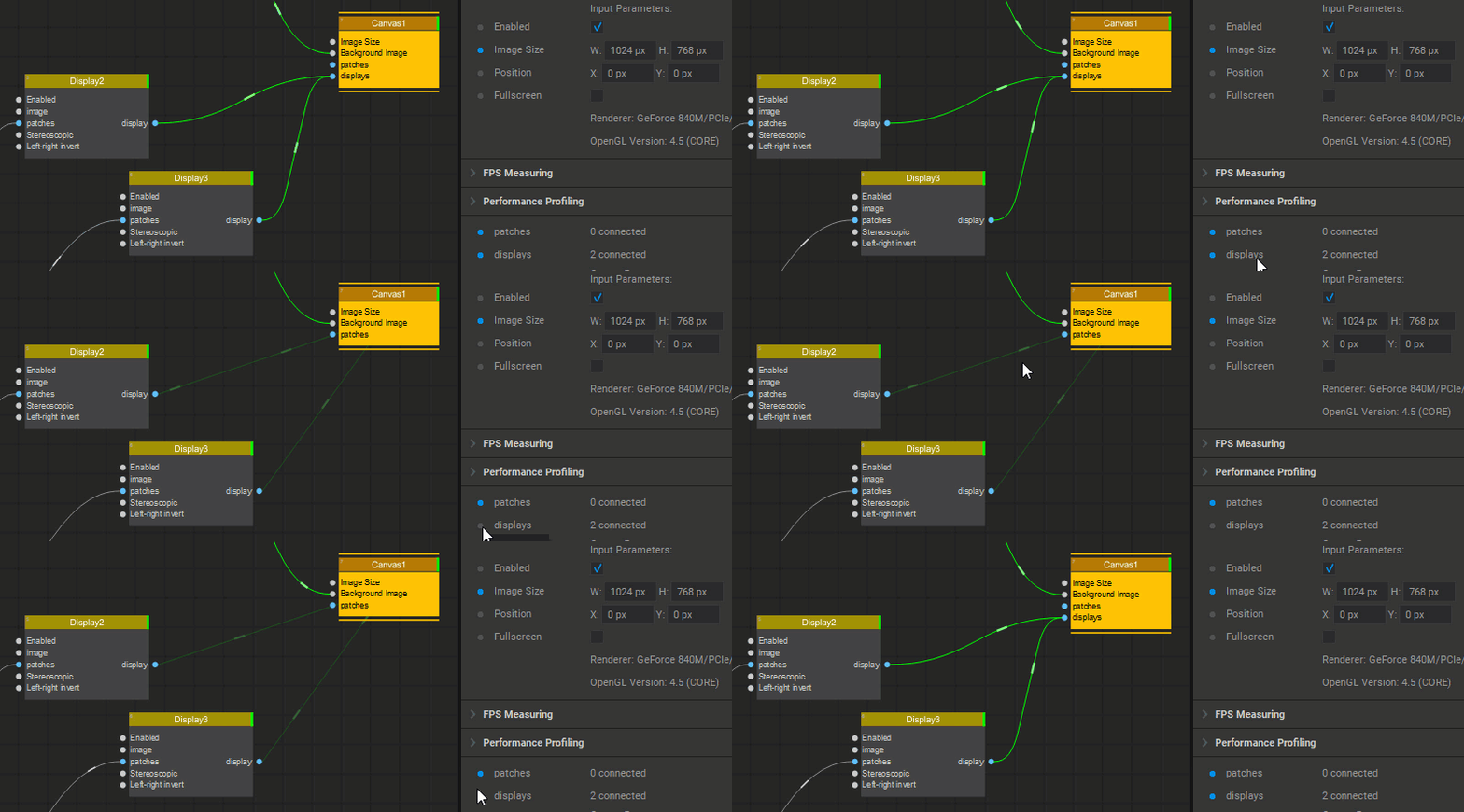
When a parameter pin with an established link becomes hidden, this link will remain active and be displayed as a dimmed straight line.
Last updated on