

Media Player
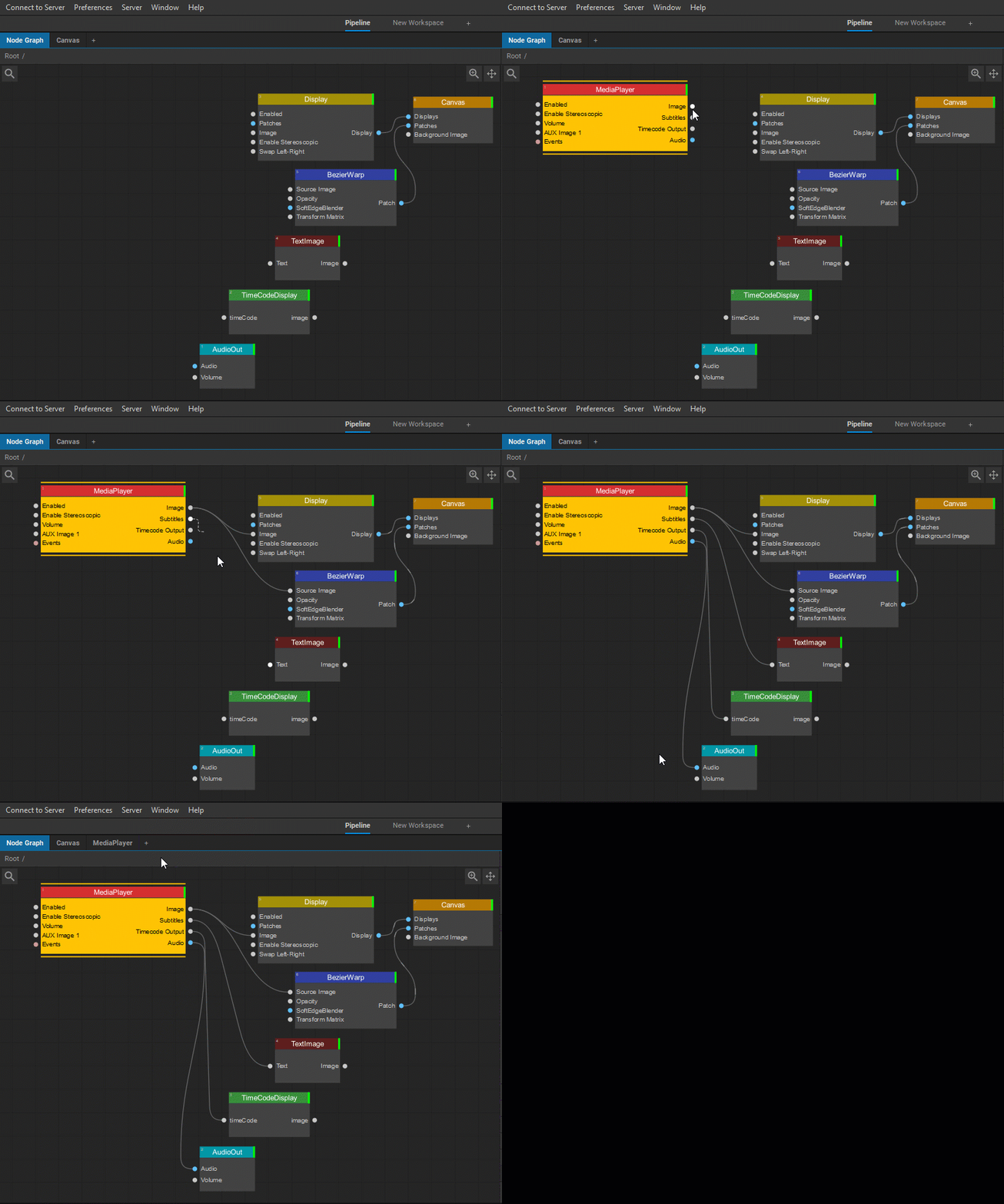
The Media Player node creates a media player that provides control over the playlists and timelines playback. Its output Image parameter can be connected to any node capable of receiving an input image. The Media Player node can also output Audio, Subtitles, and Timecode parameters.
For detailed information on managing media playback with the help of the Media Player widget, see Media Playback.
To preserve a media item’s aspect ratio, choose a Position Method for that item. See Transformation Properties.
The Settings panel of the Media Player node offers the following control and information parameters:
| Image Size | Sets the width and height of the media player output in pixels. |
| Image Interpolation | Allows selecting an image interpolation mode for media items: Linear or Nearest-neighbor. |
| Transparent Background | Sets a transparent background for the media player output. |
| Enable Stereoscopic | Enables rendering of the media player output as stereoscopic. |
| Autoplay | Indicates that the first item in the first playlist of the media player should be automatically played on Screenberry startup. |
| Playback Speed | Sets media playback target speed. If this value is changed, media playback should be restarted for the changes to take effect. |
| Timecode | |
| Listen to Timecode | If enabled, the media player listens and accepts an incoming timecode. |
| Follow Timecode | If enabled, the media player starts the playback according to the received timecode. |
| Timecode In | Provides information about the incoming timecode. |
| Timecode Frame Rate | Specifies the media player’s timecode frame rate for synchronizing the incoming timecode with playback. If Auto is selected, the frame rate for the timecode will be set based on the initial Canvas frame rate. The frame rate of outgoing LTC or MTC is not altered by this parameter. To find their FPS values, refer to the corresponding nodes where timecode is processed (e.g. the LTC Encoder node). |
| Regenerate Timecode Frames | Specifies the number of frames the timecode continues to run if the incoming timecode has been lost. |
| Audio | |
| Volume | Provides the media player’s output audio volume control. |
| Number of Audio Outputs | Specifies the number of audio outputs. |
| AUX Input | |
| Number of AUX Inputs | Specifies the number of AUX inputs. |
| AUX Image | Provides information about the AUX image source received by the media player. |
| Advanced | |
| Playlist Sync Mode | Controls audio-video synchronization for playlists and matrix playlists. • Real Time — follows the system clock, skipping or repeating video frames when necessary to maintain playback speed. • Smooth Playback (default) — may slightly adjust playback speed to match the output frame rate and reduce frame skipping. Audio playback speed is adjusted to maintain synchronization. • Play Every Frame — plays every source video frame at the Canvas frame rate, ignoring the source frame rate and adjusting audio playback speed accordingly. |
| Timeline Sync Mode | Controls audio-video synchronization for timelines. • Real Time (default) — follows the system clock, skipping or repeating video frames when necessary to maintain playback speed. • Smooth Playback — uses the source video of the top playing item in the timeline tracks to adjust playback speed for smoother video. Audio playback speed is adjusted to maintain synchronization. |
| Image Wrap Mode | Selects how the image is sampled outside its texture boundaries. Clamp to Black returns black outside the image; Repeat Edge Pixels extends the colors of the nearest edge pixels. |
| Frame Upload Method | Selects how video frame data is uploaded to GPU memory. • PBO (default) — uses Pixel Buffer Objects. • Async Short — uploads asynchronously, but rendering may wait for the upload to finish. • Async Long — uploads data for use in the next frame while the current frame is rendered, adding one frame of latency. |
| Log Frame Drops | Specifies that information about skipped/doubled frames will be logged. |
| Events | Allows you to receive input messages for media items mapping and provides information about the number of input messages received. |
| Output Parameters | |
| Image | Image output of the media player. |
| Audio | Audio output of the media player. |
| Subtitles | Outputs the subtitles text. |
| Timecode Output | Outputs the timecode. |
| Current Playlist Name | Displays the current media player playlist’s name. |
| Current Item Position | Displays the current media item’s position in the playlist. |
| Number of Items in Playlist | Displays the number of media items in the current playlist. |
| Current Item Name | Displays the current media item’s name. |
| Current Item Normalized Time | Displays the current media item’s normalized time. |
| Current Item Remaining Time | Displays the current media item’s remaining playback time. |
Last updated on