


Screenberry licenses
Screenberry supports Non-commercial, Subscription, Permanent, and Lite licenses. How you activate a license depends on whether it is a Non-commercial activation, a purchased software license, or a USB dongle.
Choose an activation method
- Non-commercial license: Request and activate it in Screenberry Panel. Activate a Non-commercial license.
- Purchased software license: Install a Subscription, Permanent, or Lite license in Screenberry Configurator. Install a purchased software license.
- USB dongle license: Connect the Sentinel HASP Key to the Screenberry Server computer. Use a USB dongle license.
License types at a glance
| License | Intended use | Available form | Activation | License term |
|---|---|---|---|---|
| Non-commercial | Learning, evaluation, and non-paying projects | Software | Screenberry Panel | Free; renews automatically |
| Subscription | Commercial projects, events, touring shows, and temporary installations | Software | Screenberry Configurator | Monthly or annual |
| Permanent | Commercial projects and fixed installations | Software or USB dongle | Screenberry Configurator or connect the dongle | Perpetual |
| Lite | Smaller commercial installations that fit a reduced feature set | Software or USB dongle | Screenberry Configurator or connect the dongle | Perpetual |
Note: A license can be used on only one computer at a time.
Feature availability can also depend on the operating system; see Platform Support.
Activate a Non-commercial license
- Launch Screenberry Server.
- Launch Screenberry Panel and connect it to the server.
- In the activation window, select Request Activation Key to open the online registration form.
- Complete and submit the form. The activation key is sent to the email address provided in the form.
- Return to the activation window in Screenberry Panel, enter the activation key, and select Activate.
The Non-commercial license renews automatically every 90 days while the computer running Screenberry Server is connected to the internet.
Install a purchased software license
Use Screenberry Configurator to install a Subscription, Permanent, or Lite software license:
- Launch Screenberry Configurator on the computer that will run Screenberry Server.
- Select Sign In in the upper-right corner.
- Enter the account email and password supplied with the license, then sign in.
- Open the Available Licenses tab.
- Find the license you want to install on this computer.
- Open the license menu and select Install License.
- Open the Installed Licenses tab and confirm that the license appears there.
If you received a temporary password, change it as soon as possible. Do not share account credentials or include them in screenshots, support requests, or project files.
Note: An internet connection is required while installing a software license. Subscription licenses must also connect periodically for renewal.
After installation, start Screenberry Server and confirm that the expected licensed features and output capacity are available.
Use a USB dongle license
Permanent and Lite licenses can be supplied on a Sentinel HASP Key, a USB hardware license dongle. Connect the dongle to the computer running Screenberry Server. No software activation action is required.
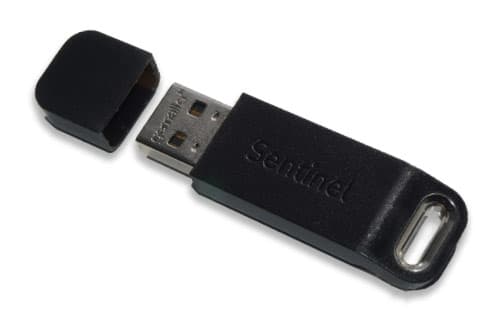

Important: The Sentinel HASP Key must remain connected while Screenberry Server is running. If no valid license is detected, Screenberry operates in Non-commercial mode and commercial features become unavailable.
To use the license on another computer, move the USB dongle to that computer. No software transfer action is required, and the license is available only on the computer to which the dongle is connected.
Note: Encrypted media playback requires a USB dongle license.
Use a license on another computer
A license can be used on only one computer at a time.
- USB dongle license: Disconnect the Sentinel HASP Key and connect it to the other Screenberry Server computer. No software action is required.
- Software license: Contact Screenberry support or your distributor for the applicable transfer procedure before changing the licensed computer.
Related information
Last updated on